HOWTO: Debugging JavaScript using “debugger;”
How to debug JavaScript inside Visual Studio using the debugger keyword, plus the Internet Explorer settings you need to flip to enable it.

There are a lot of developers who write custom JavaScript or need to debug pre-written JavaScript, yet do not know that they can debug it in Visual Studio 2005. This is a fairly simple process.
Visual Studio offers the developer the ability to utilize the IDE to debug, just like you would debug if you are debugging .NET code. How? Very simple, the “debugger;” key word.
How It Works
First, you must enable script debugging in Internet Explorer (we will get that in a minute, first lets look at some code).
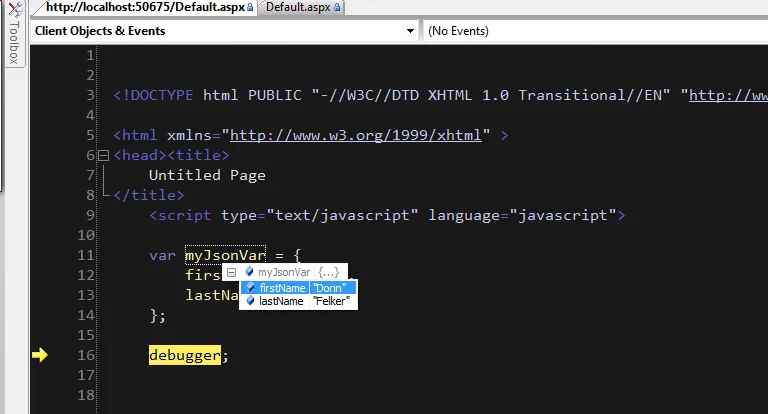
To debug: Write your JavaScript and place the “debugger” keyword where ever you want the code to break into debugging. The JavaScript interpreter hits this keyword and halts execution and returns the control back to the IDE. This is like setting a breakpoint inside of Visual Studio.
Example
<%@ Page Language=”C#” AutoEventWireup=”true” CodeBehind=”Default.aspx.cs” Inherits=”JsDebuggerExample._Default” %>
debugger; // The code will break right here and return to the IDE for you to debug.
This will allow you to break into the code. When control returns to the IDE, it looks like this:
How To Enable in Internet Explorer
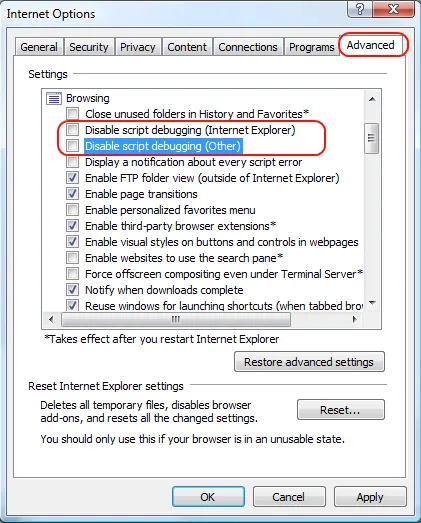
You’ll need to uncheck a few boxes in the advanced section of Internet Explorer to enable script debugging. If you dont, script debugging simply wont work. It will not break and you’ll be left scratching your head wondering what you did wrong.
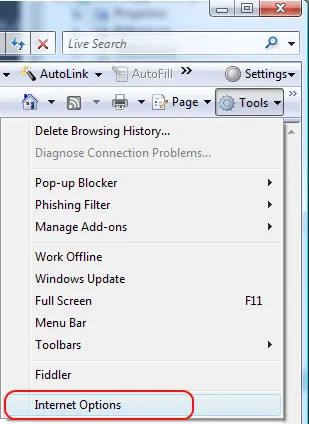
Go to Internet Options inside of Internet Explorer
Then go to the Advanced Tab and Uncheck “Disable script debugging (Internet Explorer)” and “Disable script debugging (Other)”
Click “Ok”.
Now place your “debugger” keyword anywhere in your JavaScript. Fire up the page through Visual Studio and get your debug on.
🙂